How to Sort Gmail by Sender
Gmail has no sort-by-sender option, on the web or in the app. Here are the workarounds that do exist, and how to see which senders actually fill your inbox.
You can't: Gmail only orders mail by date. To see one sender's emails, search from: followed by their address, use the From chip that appears under the search bar after you search, or right-click an email and choose Find emails from.
What Gmail can't show you is the list most people are after: every sender, ranked by how much they send you. For that you need a tool that counts.
Gmail has no sort-by-sender option
Your inbox is ordered by date, and Gmail doesn't offer a way to change that to sender, on the web or in the app. Labels and inbox categories split your mail into separate piles, but each pile is still in date order.
What Gmail does well is pulling up one sender at a time. What it doesn't do is tell you which senders are responsible for most of your mail, which is usually the reason people go looking for a sort button in the first place.
See every email from one sender
There are three quick ways, and they all end in the same filtered list.
1. Search with from:
from:name@example.com2. Use the From chip
Search for anything in Gmail on the web and a row of filter chips appears under the search bar. Click From, then type a name or pick from the suggested senders. You can choose more than one sender at once.
3. Right-click an email
In your inbox list on a computer, right-click any email and choose Find emails from followed by the sender's name. Gmail runs the search for you.
ℹ Every result is still sorted by date
Keep a sender's mail together automatically
If you want one sender to have a permanent place in the sidebar, give their mail a label with a filter:
- Search
from:name@example.com. - Open the search options (the sliders icon at the right of the search bar) and click Create filter.
- Tick Apply the label and pick or create a label. Add Skip the Inbox if you don't want their mail in the inbox at all.
- Tick Also apply filter to matching conversations to label what's already there, then click Create filter.
That gives the sender their own folder-like view. It's still in date order, and it only makes sense for the handful of senders you want to keep.
See who sends you the most
Gmail's closest thing to this is its Manage subscriptions page (More → Manage subscriptions on a computer), which lists your mailing-list senders with how many emails each has sent you recently. It only covers subscriptions and only recent mail, but it's free and built in. Our guide to unsubscribing in Gmail covers that page.
Gmailytics answers it for your whole inbox. It connects to your Gmail and ranks the senders in your inbox by how many emails they've sent you. On the Senders tab, click a column to re-sort the list by storage used, by unread share or by name. The biggest senders by size are flagged as storage hogs, and the Mostly unread chip narrows the list to senders with at least 10 emails, 90% or more of them unread.
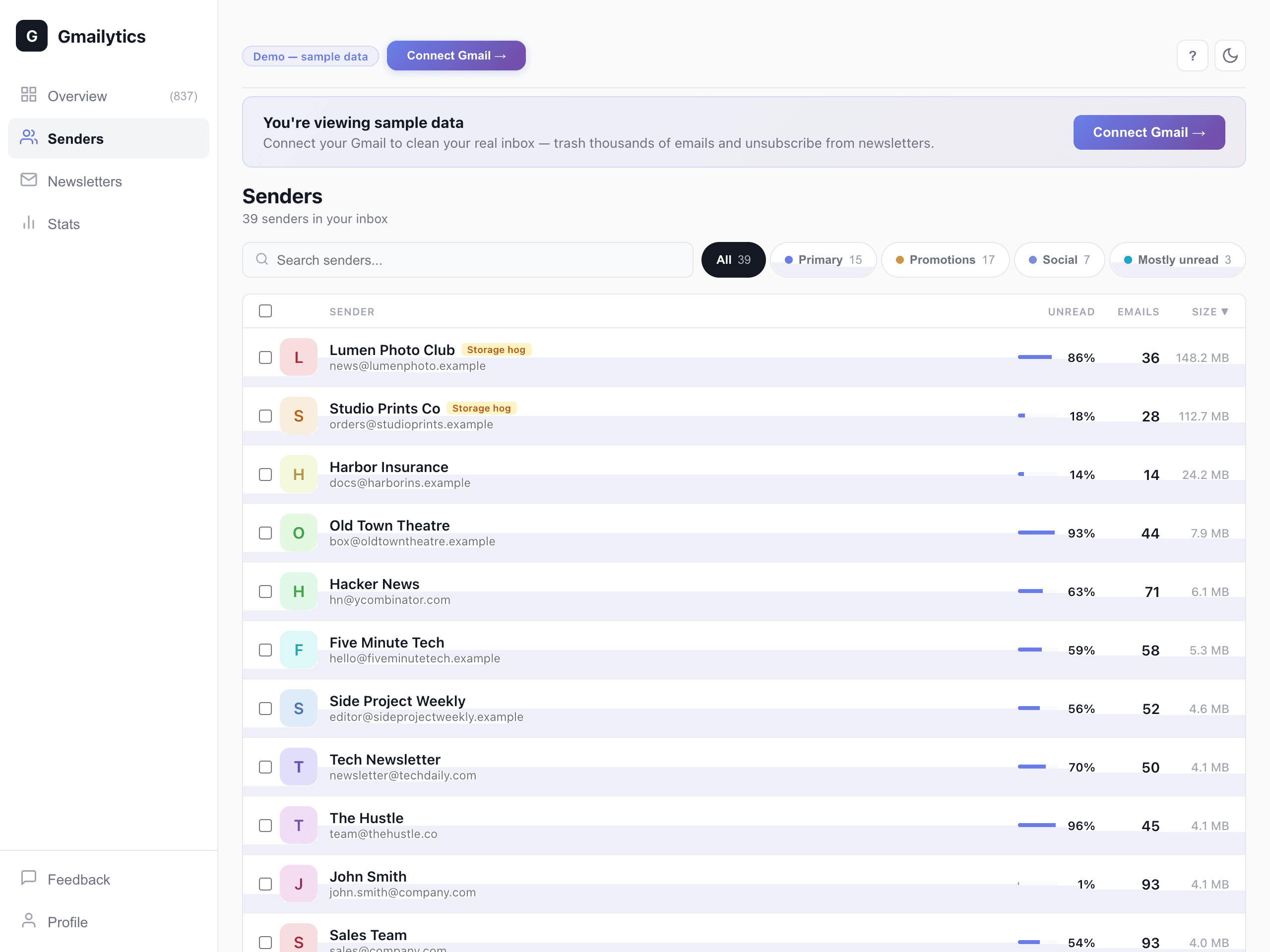
Gmailytics reads metadata only: senders, dates, sizes, labels and read status, never subject lines or message content. It looks at your inbox, not archived mail.
Clear out one sender
Once you can see who the worst offenders are, getting rid of one is quick. In Gmail, search from: plus their address, tick the checkbox above the list, and click “Select all conversations that match this search” before you delete. Without that last click you only get the first page of results.
In Gmailytics, select one or more senders in the list and trash or archive everything from them in one action, up to 5,000 emails per sender at a time. If you only want part of a sender's mail gone, the envelope button on their row trashes just their unread, or just their read, emails.
ℹ Storage comes back when the Trash empties
Frequently asked questions
Can you sort Gmail by sender?
No. Gmail orders mail by date, and there's no option to sort by sender on the web or in the app. To see one sender's mail, search from: plus their address, use the From chip, or right-click an email and choose Find emails from.
How do I see all emails from one sender in Gmail?
Search from:name@example.com. On a computer you can also right-click any email from them and choose Find emails from, or use the From chip that appears under the search bar after you search.
How can I see who sends me the most email?
Gmail has no report for it. Its Manage subscriptions page shows recent email counts for mailing lists only. Gmailytics ranks the senders in your inbox by how many emails they've sent you, and can re-sort by storage or unread share.
Can I group emails by sender in Gmail?
Not as a view of your whole inbox. You can give a single sender's mail its own label with a filter (search from:, then Create filter, then Apply the label), which keeps that sender together in the sidebar.
How do I delete all emails from one sender?
Search from: plus their address, tick the checkbox, click “Select all conversations that match this search”, then delete. Deleted mail stays in Trash for 30 days. Empty the Trash if you need the storage back sooner.
Is Gmailytics free?
Yes — 2,000 cleanups a month and unlimited newsletter unsubscribes are free, with storage analytics included and no credit card required. If you need more, Pro is $7/quarter or $24/year, published openly on /pricing — cancel anytime.
See your senders ranked
Connect your Gmail and see the senders in your inbox ranked by how many emails they've sent you, then clear any of them out, up to 5,000 per sender at a time. Free for 2,000 cleanups a month, no credit card.
Try Gmailytics free →Or see pricing