How to Delete Thousands of Emails in Gmail at Once
Gmail can clear 10,000 emails in about as many clicks as it takes to clear ten — but only if you know about one easily-missed link. Here's the fast way, plus what to narrow down first so you don't delete something you wanted.
Search for what you want gone, tick the checkbox above the list, then click “Select all conversations that match this search” in the banner that appears. Hit the trash icon, then empty the Trash — storage doesn't come back until you do.
Freed quota is the visible win. The invisible one: mail you'll never open still lives on a powered server. The environmental impact page estimates what a big cleanup actually saves.
That banner link is the whole trick. Without it the checkbox selects only the 50 conversations on screen, which is why deleting a 12,000-email backlog feels like it takes all afternoon.
Why “select all” doesn't select all
Gmail shows 50 conversations per page by default. The checkbox at the top-left selects exactly those 50 — not the 12,000 behind them. Most people discover this the slow way: select, delete, watch the next 50 load, repeat, lose the will to live.
The moment you tick that box on a search with more results than fit on one page, a thin banner appears above the list:
Click that second sentence. Now the trash icon applies to all 12,431. It is one click, it is easy to scroll straight past, and it is the difference between a two-minute cleanup and an hour of clicking.
ℹ Raise your page size while you're here
Narrow it down before you delete anything
“Select all conversations that match this search” is only as safe as the search. Deleting on a broad query is how people lose receipts and tickets they needed. Spend thirty seconds narrowing first — these are the operators that do the most work:
| Search | Finds | Worth knowing |
|---|---|---|
is:unread | Everything you never opened | The single biggest bucket on most neglected inboxes |
category:promotions | Marketing mail Gmail already sorted for you | Safest mass delete there is — Gmail did the triage |
older_than:2y | Anything past its usefulness | Accepts d, m, or y — older_than:6m, older_than:1y |
from:noreply@example.com | Every message from one sender | Where the thousands usually actually are |
category:promotions older_than:1y | Old marketing mail only | Operators stack — narrow before you delete |
Operators combine, and a minus sign excludes. This is the query most people actually want — old promotional mail, with anything you starred left alone:
category:promotions older_than:1y -is:starredHow to delete every unread email
On a long-neglected account this is usually the single biggest pile, and it's the one people search for most. The search is simply:
is:unreadTick the checkbox, click “Select all conversations that match this search”, then the trash icon. Gmail will ask you to confirm a bulk action of that size — that confirmation is the point of no return for the next 30 days, so read the count on it.
⚠ Unread does not mean unimportant
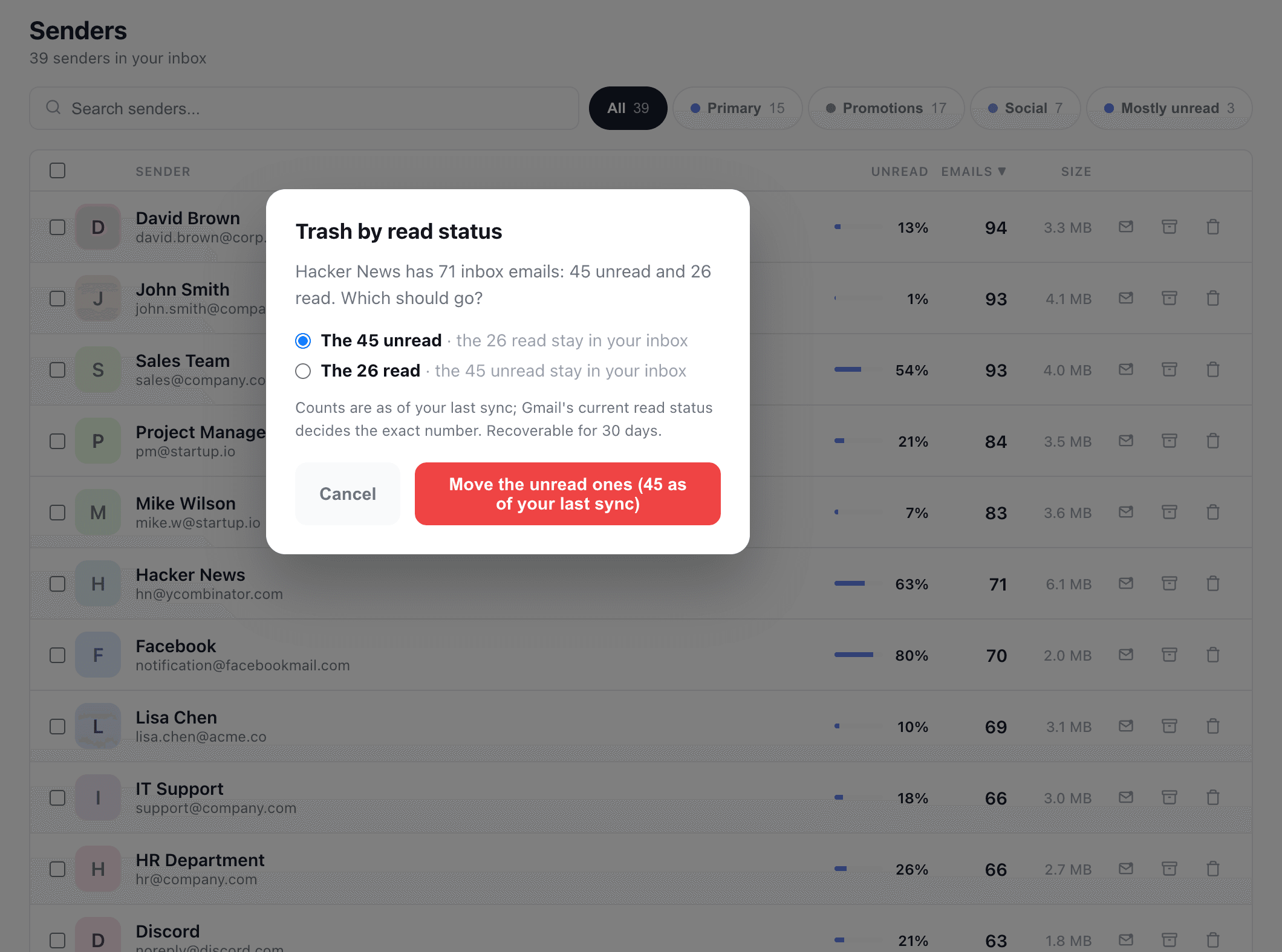
is:unread category:promotions first and see how it feels.Before you delete all of it, look at where the unread pile comes from. It's rarely spread evenly: it usually traces back to a handful of senders you stopped opening long ago. Gmailytics shows what share of each sender's inbox email is unread, and its Mostly unread filter lists the senders with at least 10 emails, 90% or more of them unread. From there you can trash or archive a sender, which acts on all of their inbox email, read and unread alike. On the Senders tab, the envelope button on a sender's row trashes only their unread (or only their read) emails instead, with an exact undo for 30 days.
Delete everything from one sender
When someone says they have 30,000 emails, it's almost never 30,000 different correspondents. It's a few dozen senders who mailed them several times a week for years. Deleting by sender is both the fastest way to shed volume and the easiest to reason about, because you know what you're losing.
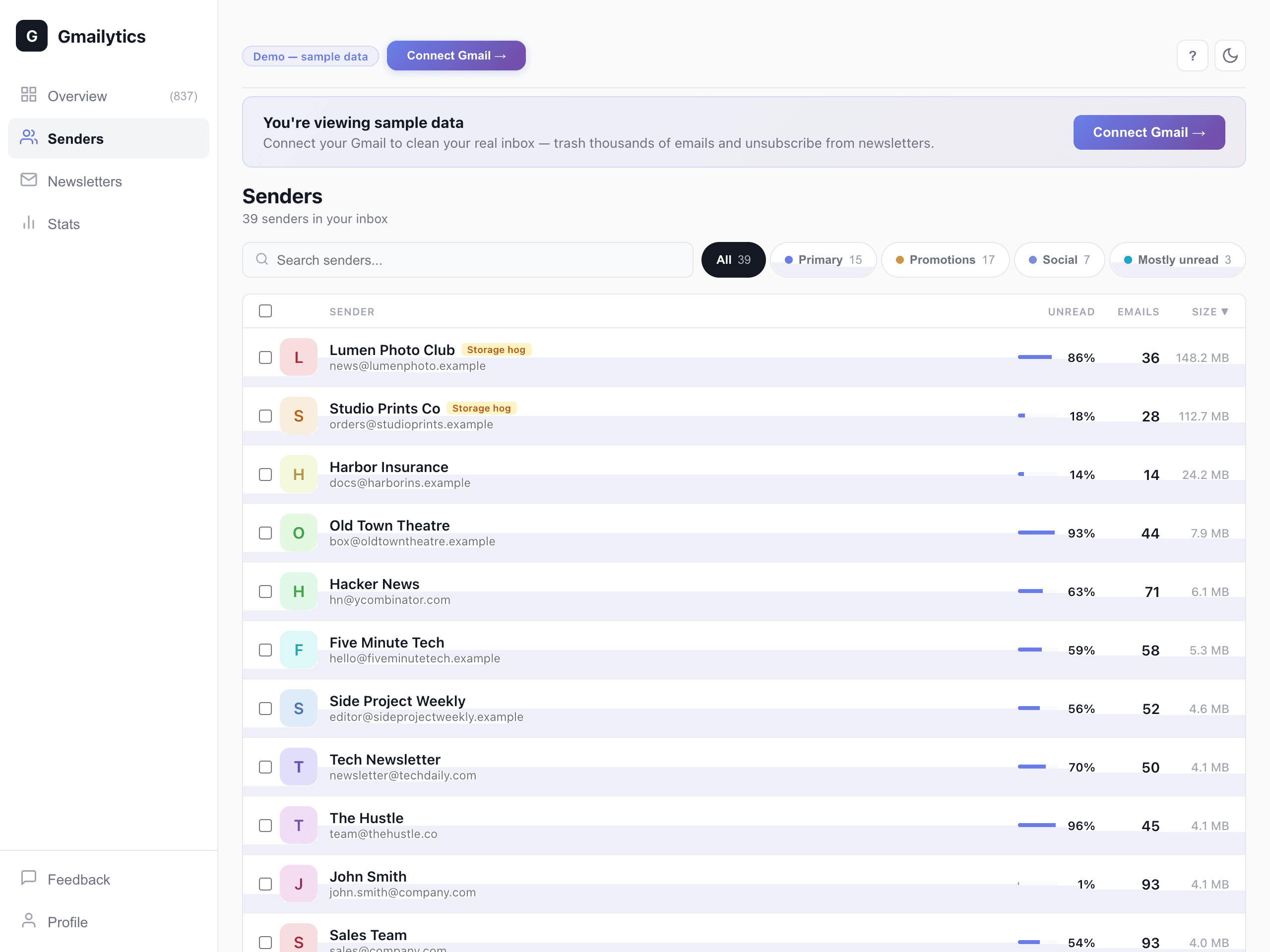
from:newsletter@example.comThe hard part isn't deleting — it's knowing which senders to aim at. Gmail won't rank your senders by volume or by the storage they're using, so finding the worst offenders by hand means guessing, searching, and checking one at a time. The workarounds Gmail does have are in our guide to sorting Gmail by sender.
That's the gap Gmailytics fills: it connects to your Gmail, ranks every sender by how many emails and how much storage they're responsible for, and lets you trash or archive all of them in one action — with one-click unsubscribe so the same sender doesn't rebuild the pile next month (Gmail's own unsubscribe options are in how to unsubscribe from emails in Gmail). It reads metadata only: senders, dates, sizes, labels and read status — never subject lines or message content.
If you expect to do this more than once, the browser extension (Chrome, Edge and Firefox) keeps the sender list synced in the background, so the ranking is usually already built the next time an inbox gets away from you rather than rescanning from scratch.
Deleting isn't enough — empty the Trash
This is where most cleanups quietly fail. Deleted mail moves to Trash and still counts against your 15 GB for a full 30 days. Delete 40,000 emails, check your storage, see no change, conclude the cleanup didn't work.
Open Trash in the left sidebar (you may need to click More to see it) and choose Empty Trash now. That step is permanent — there is no recovery afterwards, which is exactly why the 30-day window exists. If you're at all unsure, leave it and let Gmail purge it automatically.
ℹ Give the storage meter time
Deleting the most emails ≠ freeing the most space
Worth being clear about, because the two goals pull in different directions. If your problem is a cluttered, unusable inbox, delete by count — unread, promotions, noisy senders. If your problem is “Gmail is full,” count barely matters: 10,000 plain-text newsletters might occupy less space than a dozen emails carrying video attachments.
For the storage version of this job, size operators are the better tool — how to find and delete large emails in Gmail covers larger:10M, the Google One storage manager, and ranking senders by storage rather than by volume. Most full mailboxes need both passes.
What not to sweep up
A bulk delete is indiscriminate by design. Before you select all on a broad query, spend a moment on the categories people most often regret:
- Receipts and order confirmations — warranties, returns, expense claims, and tax records all live here. Exclude with
-from:receiptsor keep anything matchingsubject:(receipt OR invoice OR order). - Anything from a government, bank, or your employer — hard to re-obtain, occasionally legally required.
- Account and security mail — the trail proving you own an account matters if you ever have to recover it.
- Personal mail from real people — this is the one people mourn. It's also small: exempting it costs you almost no storage.
-category:promotions -category:updates -category:socialis a decent shield.
⚠ Archiving is not deleting
Frequently asked questions
How do I delete all emails in Gmail at once?
Search in:inbox (or open All Mail in the left sidebar to include archived mail), tick the checkbox above the list, click “Select all conversations that match this search,” then the trash icon. Empty the Trash afterwards to actually reclaim the storage. Deleting your entire mailbox in one go is rarely what people want, though — narrowing by category, age, or sender first keeps the things you'd miss.
Is there a way to delete all unread emails in Gmail?
Yes. Search is:unread, select all conversations that match, then delete. If you want a safety margin, run is:unread category:promotions instead — that limits it to marketing mail Gmail has already classified, leaving unread receipts and personal mail untouched.
Why does Gmail only let me select 50 emails?
It doesn't — 50 is just the page size. The checkbox selects the current page, and a banner then offers “Select all conversations that match this search” for the full result set. You can also raise the page size to 100 under Settings → General → Maximum page size.
Can I undo a bulk delete in Gmail?
For 30 days, yes. Deleted mail sits in Trash and can be selected and moved back to the inbox at any point in that window. After 30 days — or the moment you choose “Empty Trash now” — it's gone permanently and Google support cannot restore it.
Does deleting thousands of emails free up Google storage?
Less than most people expect. Volume and size are different problems — 10,000 plain newsletters can occupy less space than a dozen emails carrying video attachments. Emptying the Trash is required either way, but if reclaiming storage is the actual goal rather than a tidier inbox, deleting by size is the pass you want: how to find and delete large emails in Gmail covers that, including why storage can appear unchanged afterwards.
Can I do this on the Gmail mobile app?
Only partially. The search operators work on mobile, but there is no “select all conversations that match this search” option — you're limited to tapping messages individually. For a cleanup of any real size, use desktop or a tool that handles the batching for you.
Is Gmailytics free?
Yes — 2,000 cleanups a month and unlimited newsletter unsubscribes are free, with storage analytics included and no credit card required. If you need more, Pro is $7/quarter or $24/year, published openly on /pricing — cancel anytime.
Find the senders behind the thousands
Connect your Gmail and see every sender ranked by how many emails they have in your inbox — then clear them out, up to 5,000 per sender at a time. Free for 2,000 cleanups a month, no credit card.
Try Gmailytics free →Or see pricing