How to Find & Delete Large Emails in Gmail
Gmail has no “sort by size” button — but large emails and attachments are usually what's eating your 15 GB. Here are the three ways to find them and clear them out, from fully manual to one click.
Search larger:10M in Gmail, select the results, hit trash — then empty the Trash, or the storage never comes back. That clears your individually huge emails.
It won't catch the newsletter quietly using 400 MB across 1,400 small messages — no single one is big enough to match. For that you need to rank senders by total storage instead. Most full mailboxes have both problems.
First: why is Gmail full in the first place?
A free Google account gets 15 GB shared across Gmail, Google Drive, and Google Photos — not 15 GB each. So “Gmail is full” sometimes isn't a Gmail problem at all. Before deleting anything, check the breakdown at one.google.com/storage. If Photos is using 11 GB and Gmail 2 GB, no amount of inbox cleanup will help.
Assuming Gmail really is the culprit, storage gets consumed two different ways, and they need different fixes. (Quota isn't the only cost of hoarding mail — every gigabyte sits on a powered server somewhere; the environmental impact page puts a rough number on it.)
The video your cousin sent, the uncompressed photo batch, the design file. Individually huge, easy to find with a size search.
One newsletter, years of sends. Bigger than the giant — and invisible to every size-based search, because no single email is large.
Methods 1 and 2 below handle the giants. Method 3 handles accumulation. Most full mailboxes need both.
Method 1: Gmail search operators (free, manual)
Gmail can't sort your inbox by size, but the search bar understands size filters. This is the fastest free way to find your biggest individual emails.
larger:10M- Click the search box at the top of Gmail and run the search above.
- Tick the checkbox at the top-left to select the page, then click “Select all conversations that match this search” if you want everything, not just the first 50.
- Click the trash icon.
- Open Trash in the left sidebar and click “Empty Trash now.”
⚠ Step 4 is the one people skip
Combine operators to narrow things down. This one finds attachment-carrying emails over 5 MB that are more than a year old — usually the safest batch to clear in bulk:
has:attachment larger:5M older_than:1yWhich size threshold should you search?
| Search | What it finds | How many you'll see |
|---|---|---|
larger:25M | Video files, raw photos, large design files | A handful of emails — but each frees 25 MB+ |
larger:10M | Photo batches, PDF reports, presentation decks | Dozens on a typical multi-year account |
larger:5M | Scanned documents, image-heavy newsletters | Hundreds — where the real storage usually hides |
larger:1M | Almost anything with an image or attachment | Thousands — too broad to review by hand |
Start at larger:25M and work down. You'll free the most storage per decision at the top, and by the time you reach larger:1M you're reviewing thousands of emails one screen at a time — which is where manual cleanup stops being worth the hour.
If you do want to clear a result set that large by hand, Gmail's checkbox only takes the 50 on screen — there's a separate link that selects every matching conversation. That, and the operators worth pairing it with, are covered in how to delete thousands of emails in Gmail at once.
A caveat on Gmail's size numbers
Gmail measures the whole message, not the attachment. Attachments are base64-encoded for transmission, which inflates them by roughly 37%. So a 20 MB video arrives as a ~27 MB email, and larger:10M actually surfaces emails whose attachments are around 7.3 MB and up.
This works in your favour when deleting — you reclaim the encoded size, not the original file size — but it's worth knowing if the numbers ever look inflated compared to the file you remember sending.
Method 2: Google One storage manager (free, blunt)
Google's own cleanup tool lives at one.google.com/storage/management. Under Large items, open the Gmail section and you'll get your biggest individual emails listed largest-first with file sizes — the closest thing Google offers to a true sort-by-size view — and you can bulk-select and delete from there.
It spans your whole Google account, so it's one flat list with no filtering by sender, date, or label. Freed space can take 48–72 hours to appear on your storage meter, so don't panic if the number doesn't move right away.
⚠ Deletions here are permanent immediately
Method 3: Sort senders by storage used (Gmailytics)
Neither method above touches the accumulation problem, because accumulation has no big emails in it. To find the sender who's quietly used 400 MB across 1,400 small messages, you need to group by sender and total the bytes — which is exactly what Gmailytics does.
Connect your Gmail and you get every sender ranked by total storage used — attachments included — sortable by size or by email count, ascending or descending. The list usually makes the problem obvious within seconds: it's almost always three or four senders you forgot you were subscribed to. Select them, trash everything they have in your inbox (up to 5,000 emails per sender per action), and unsubscribe at the same time so it doesn't refill.
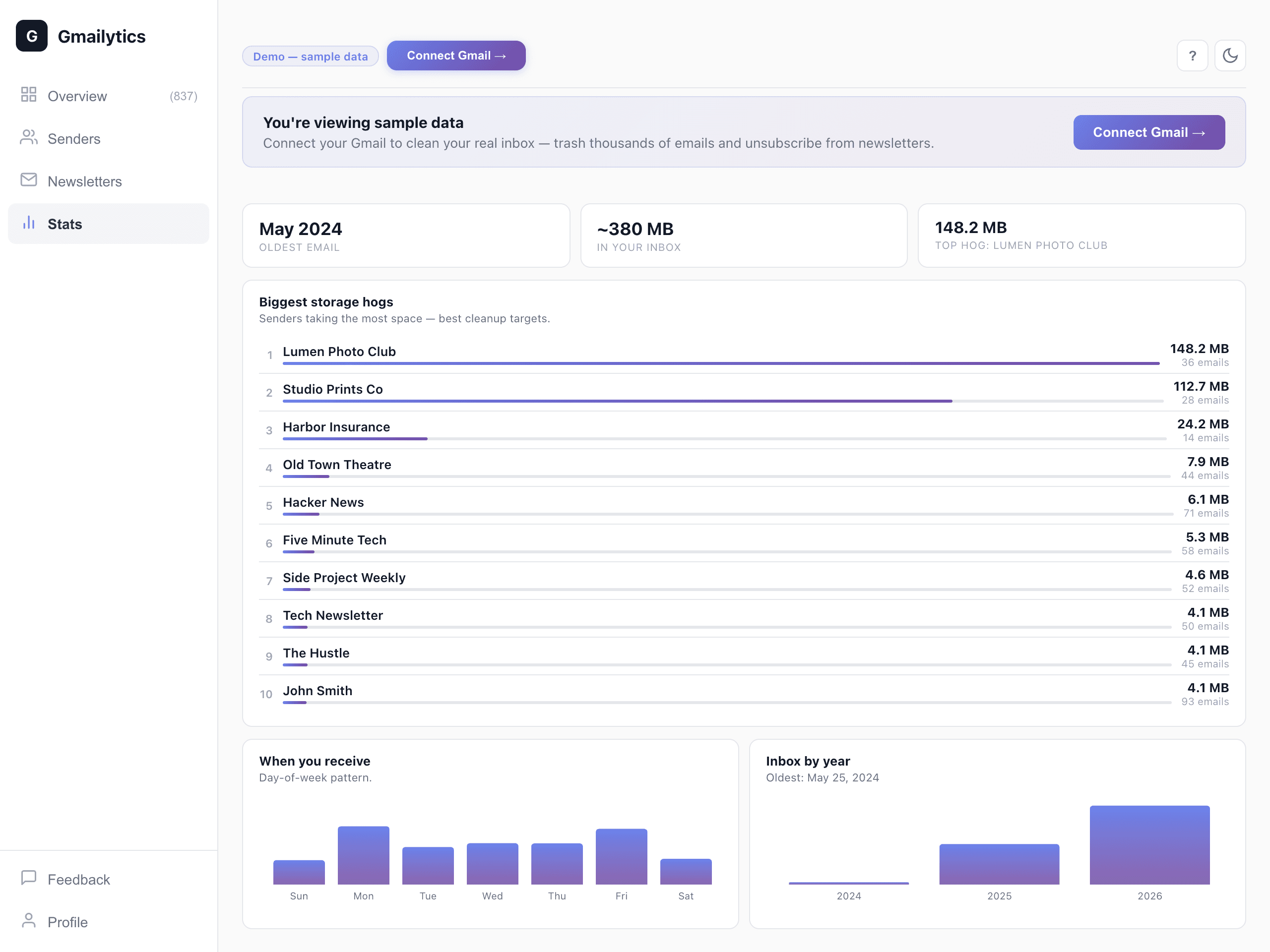
Trashing a sender's whole inbox backlog is one action, up to 5,000 emails at a time; select several senders and clear them in one batch. Everything goes to Trash, so you keep the 30-day recovery window. It's free for 2,000 cleanups a month with no credit card, and it runs in any browser — nothing to install to try it.
There is an optional browser extension for Chrome, Edge and Firefox. It doesn't add cleanup features — it keeps your sender rankings synced in the background so the storage breakdown is usually already built when you open it, instead of scanning each time. Worth it if storage creeps back; skip it if this is a one-off.
One honest note on scope: Gmailytics ranks and cleans by sender, not by individual message. For the handful of one-off 40 MB videos, the larger:25M search in Method 1 is still the right tool. Use Gmailytics for the bulk, then sweep the giants manually — together they clear far more than either does alone.
What not to delete
Large emails are disproportionately likely to be the ones worth keeping — tax documents, contracts, medical records, photos nobody backed up anywhere else. A few guardrails before you bulk-delete:
Save attachments to Drive first. Drive shares the same 15 GB quota, so this doesn't free space by itself — but it does let you delete the email while keeping the file, and Drive is far easier to search later.
Add -is:starred and -label:important to any bulk search so anything you've already flagged is excluded.
Prefer Trash over permanent deletion. Normal Gmail deletion is recoverable for 30 days, which is enough time to notice a mistake. The Google One storage manager is the exception — treat it as irreversible.
Sort by date within a sender. Last month's invoices matter; the same sender's 2019 promotional emails almost certainly don't.
Frequently Asked Questions
Can Gmail sort emails by size?
Not directly — there is no sort-by-size column anywhere in Gmail's interface. The closest native options are search operators like larger:10M, which filter rather than sort, and the Google One storage manager's “Large items” list, which is genuinely sorted but covers your whole Google account. Gmailytics adds a sender-level size view: every sender ranked by total storage used, sortable ascending or descending.
Do attachments count toward the sizes Gmail shows?
Yes — and then some. Gmail reports the size of the entire message including its attachments, and attachments are base64-encoded for transmission, which adds about 37%. A 20 MB video shows up as a roughly 27 MB email. Attachments are almost always the reason an email is large in the first place.
Why is my Gmail storage still full after deleting emails?
Three usual causes. Deleted mail sits in Trash for 30 days and still counts against your quota — empty the Trash to actually release it. Google's storage meter can lag by 48–72 hours after a bulk cleanup. And your 15 GB is shared with Google Drive and Google Photos, so if Photos is the real consumer, inbox cleanup won't move the number at all. Check the breakdown at one.google.com/storage, or see what's using your Gmail storage.
Is it safe to delete emails with large attachments?
Deleting through Gmail search or Gmailytics moves emails to Trash, where they're recoverable for 30 days, so mistakes are fixable. The Google One storage manager is the exception — it deletes permanently with no recovery window. Either way, if an attachment matters, download it or save it to Drive before deleting the email that carries it.
How do I find large emails on the Gmail mobile app?
The same search operators work: tap the search bar and type larger:10M. Bulk selection is more tedious on mobile — there's no “select all conversations that match this search” option — so for a real cleanup you're better off on desktop, or using a tool that handles the batching for you.
Is Gmailytics free?
Yes — 2,000 cleanups a month and unlimited newsletter unsubscribes are free, with storage analytics included and no credit card required. If you need more, Pro is $7/quarter or $24/year, published openly on /pricing — cancel anytime.
See which inbox senders eat your Gmail storage
Connect your Gmail and get every inbox sender ranked by storage used — attachments included. Free for 2,000 cleanups a month, no credit card.
Try Gmailytics free →Or see pricing